Gredli User Guide
A step-by-step guide to setting up your school, entering marks and publishing results.
1. System overview & user roles
Gredli is a complete school management and competency-based assessment platform that simplifies academic administration, streamlines mark entry and automates reporting. Role-based access gives everyone exactly the tools they need.
| Role | Key capabilities & permissions |
|---|---|
| School Administrator / Principal | Full access to school setup, teacher onboarding, class and stream management, subject duty allocations, subscription management, publishing assessments and school-wide reports. |
| Grade / Level Head | Oversees learning areas across a grade level, tracks completion across all streams and helps verify results before publishing. |
| Class Teacher | Manages the learner roster of an assigned stream, oversees overall performance, writes learner remarks and tracks class-wide mark completion. |
| Subject / Learning Area Teacher | Enters marks into digital marksheets for assigned subjects, tracks learner competency levels and accesses professional curriculum documents. |
2. Navigation & app structure
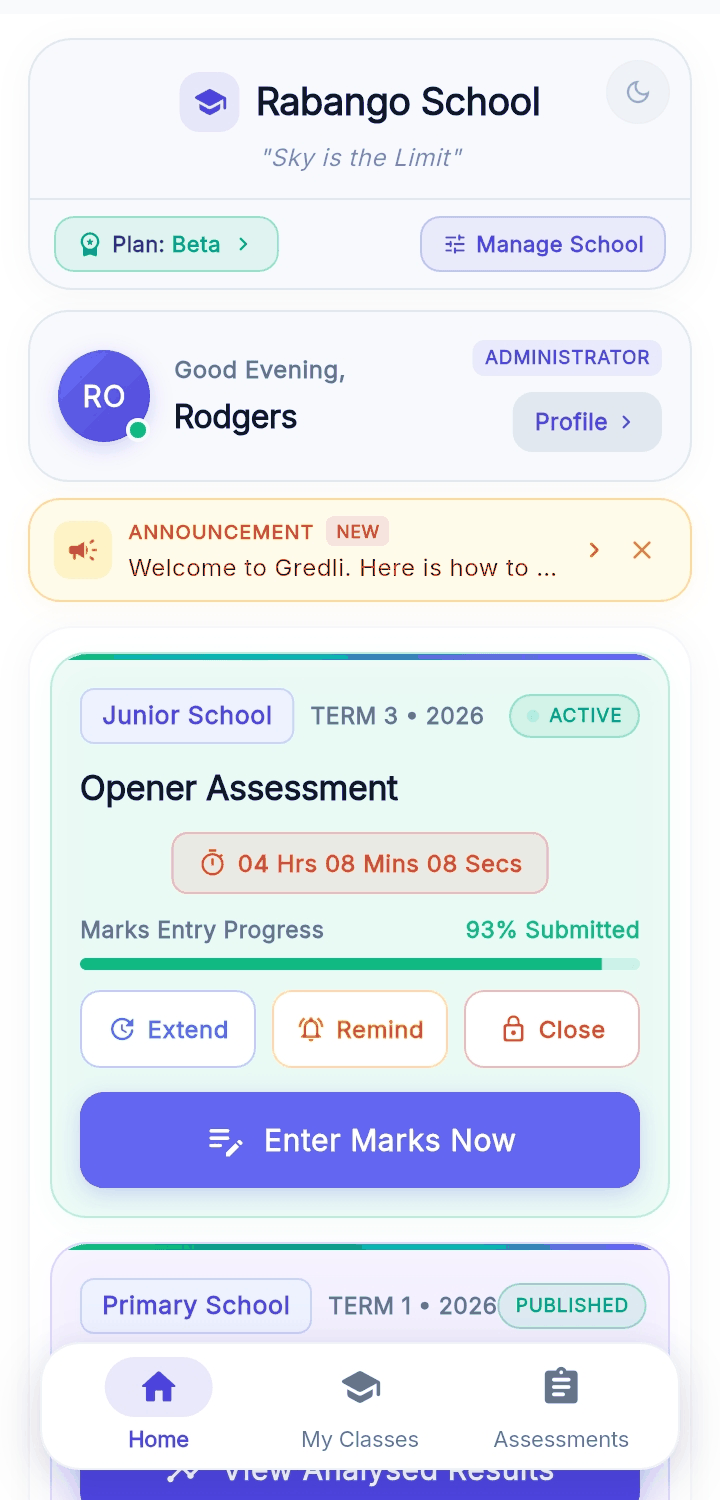
The app is organised around a bottom navigation bar with dedicated sections:
- Home: overview, active assessment trackers, quick actions and key class averages.
- Classes: academic structure (levels, grades, streams) and learner rosters.
- Assessments: the full assessment lifecycle: creation, marksheets, progress tracking and publishing.
- Reports: individual report cards, class merit lists and performance analytics.
- Profile / Settings: school branding, teacher directory, duty allocations, subscriptions and security.
3. Core workflows
3.1 Getting started & school onboarding
- Register your account. Open the app, review the introductory slides and choose Sign Up / Register New School. Enter school details, select your county and subcounty, and choose the academic levels you offer (e.g. Early Years, Primary, Junior School).
- Set up classes and streams. Go to Classes and tap Set Up Classes. Select your grade levels and name your streams (e.g. Grade 7 Blue, Grade 7 Red).
- Add learners. Open a stream and choose Add Learner to add them one by one, or use the spreadsheet upload (Excel/CSV) to bulk import learners by admission number, name and gender.
3.2 Managing teachers & allocating duties
- Add teachers. Go to Settings / Profile → Teachers and tap Add Teacher. Enter the teacher's name, contact information and role.
- Assign duties. Open Assign Duties. Link each class or stream to its class teacher, and assign teachers to subjects or learning areas per stream. Teachers see their allocated classes and subjects as soon as they log in.
3.3 Running an assessment
Step 1: Create the assessment
In the Assessments tab, tap Create Assessment and set the assessment name (e.g. Term 1 Mid-Term Assessment), the term and academic year, the target grades or levels, and the submission deadline.
Step 2: Enter marks in the digital marksheet
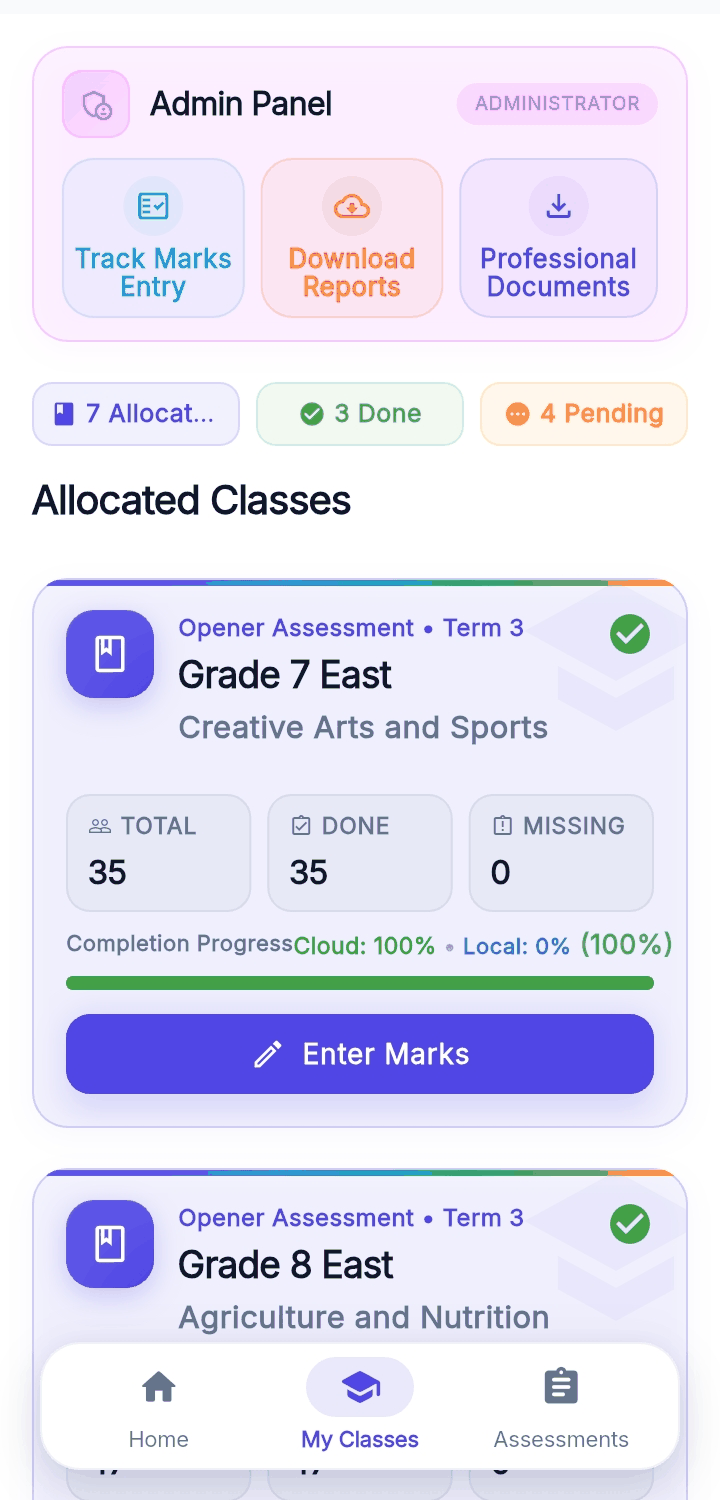
Teachers open their assigned class from the active assessment card or the Classes tab, tap Open Marksheet and enter scores directly in the grid.
- Auto-save: entered scores are never lost.
- Absent / exempt toggles: mark learners who were absent or excused.
- Leave protection: you are warned if you try to leave with unsaved changes.
Step 3: Track progress
Administrators and grade heads tap Track Assessment for a live breakdown: the percentage of marks entered per subject and stream, which subjects are still pending and who is responsible, and an option to Extend Deadline if a stream needs more time.
Step 4: Verify and publish
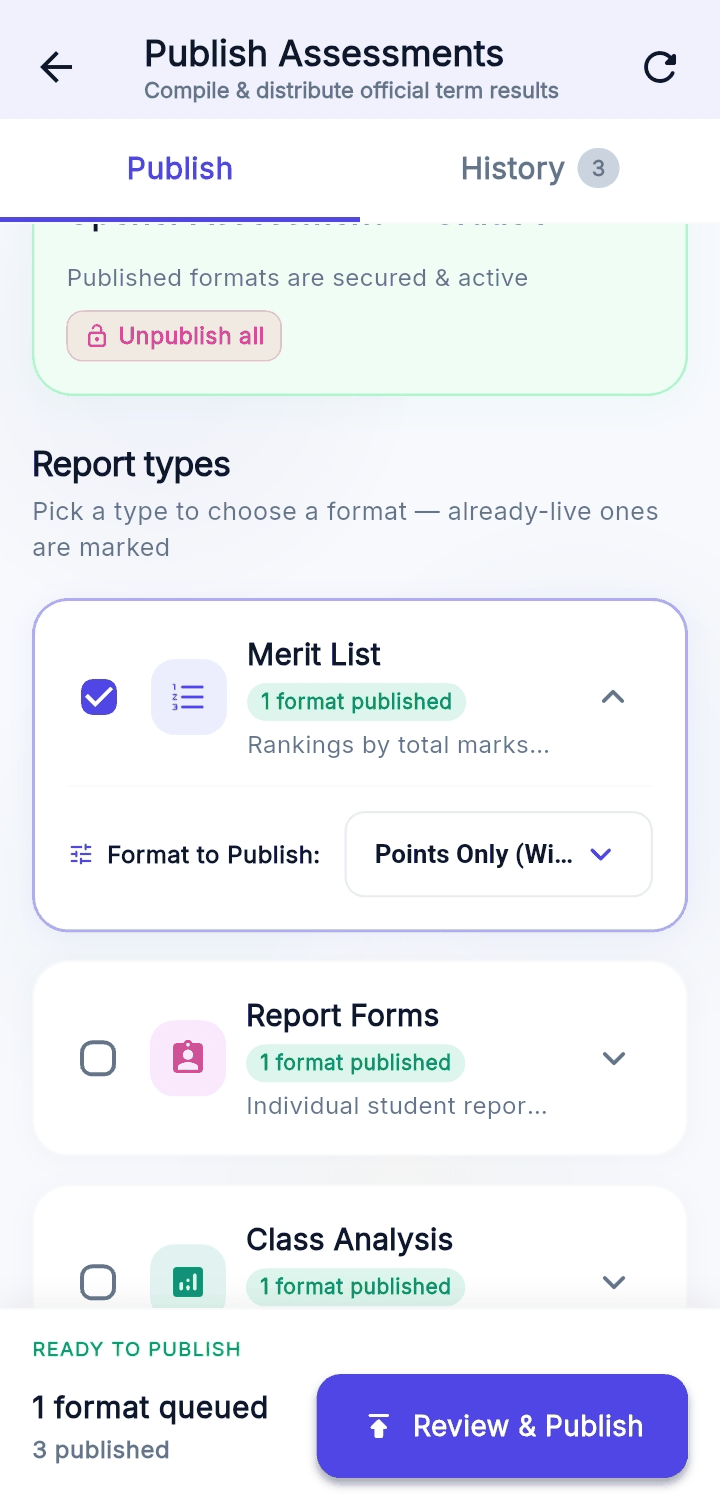
When all subject marks are submitted, the assessment status changes to Ready to Publish. Tap Publish Assessment, run the automated publish validation to catch missing entries or unusual scores, then confirm. Publishing locks the marks against unintended edits.
3.4 Reports & performance analytics
Open the Reports tab and filter by assessment, grade or individual learner.
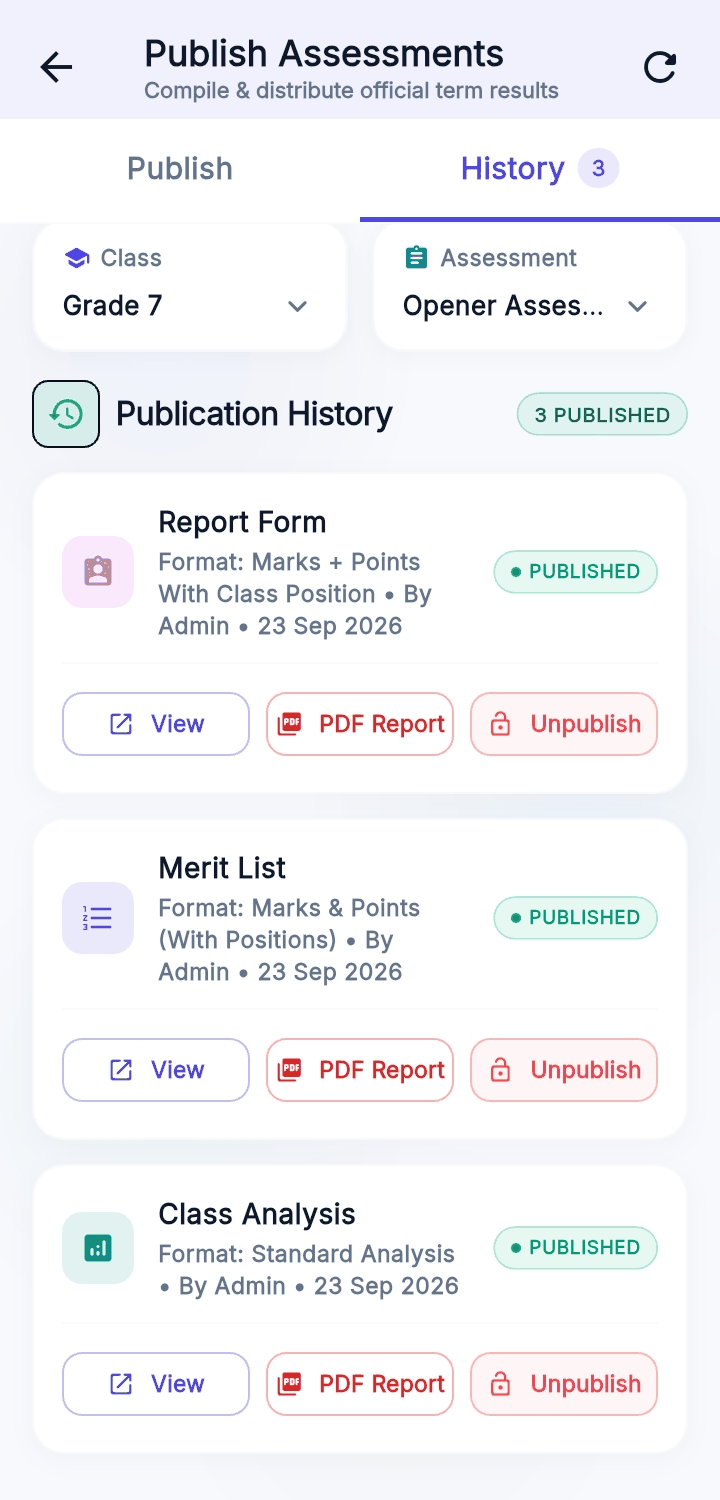
- Learner report cards: scores, performance descriptors, teacher remarks and attendance.
- Class and stream analysis: mean scores, highest and lowest marks, and performance bands.
- Export and share: generate high-resolution PDF or printable report forms for parents.
3.5 Professional documents & digital vault
Under Profile / More, store and open curriculum designs, schemes of work, lesson plans and records of work. Download standard templates or upload your school's own records.
3.6 School communications & messaging
The communications module supports staff collaboration: view announcements from the administration and check reminders about approaching assessment deadlines and duty submissions.
4. Tips & best practice
- Bulk import data: at the start of the academic year, use the Excel upload to fill learner rosters in seconds.
- Accidental deletions: if a learner is removed by mistake, open Trashed Learners in the Classes section to restore their profile and past marks.
- Role switching: teachers who are both class and subject teachers can switch between dashboards from My Classes.
5. Frequently asked questions
Can I edit marks after an assessment is published?
Publishing locks marks to protect report card integrity. To make a correction, an administrator must unlock the assessment or grant special permission.
Does the app work offline during mark entry?
Yes. Marks are saved on the device first and synchronise automatically with the secure database once a connection is restored.
How do we upgrade or manage our school subscription?
Go to School Profile → Subscriptions to see your active plan, learner limits and renewal dates.